


A shopper needs to ask about a size, delivery area or product detail before buying. A WhatsApp chat button for Shopify gives them a route to that conversation, but the button is only the entry point. Someone still needs to receive the question and provide an accurate answer. Set up the destination and reply process first, then add the link where it helps the buying decision without covering important store controls.
A normal click-to-chat link opens the relevant WhatsApp experience; it is not an embedded conversation that automatically stays inside the store page. It also does not require you to obtain API access merely to create a link. This walkthrough distinguishes a simple link, an app-provided widget and a connected business workflow. Choose the route that fits your Shopify theme and support needs, then test it on the real devices your customers use.
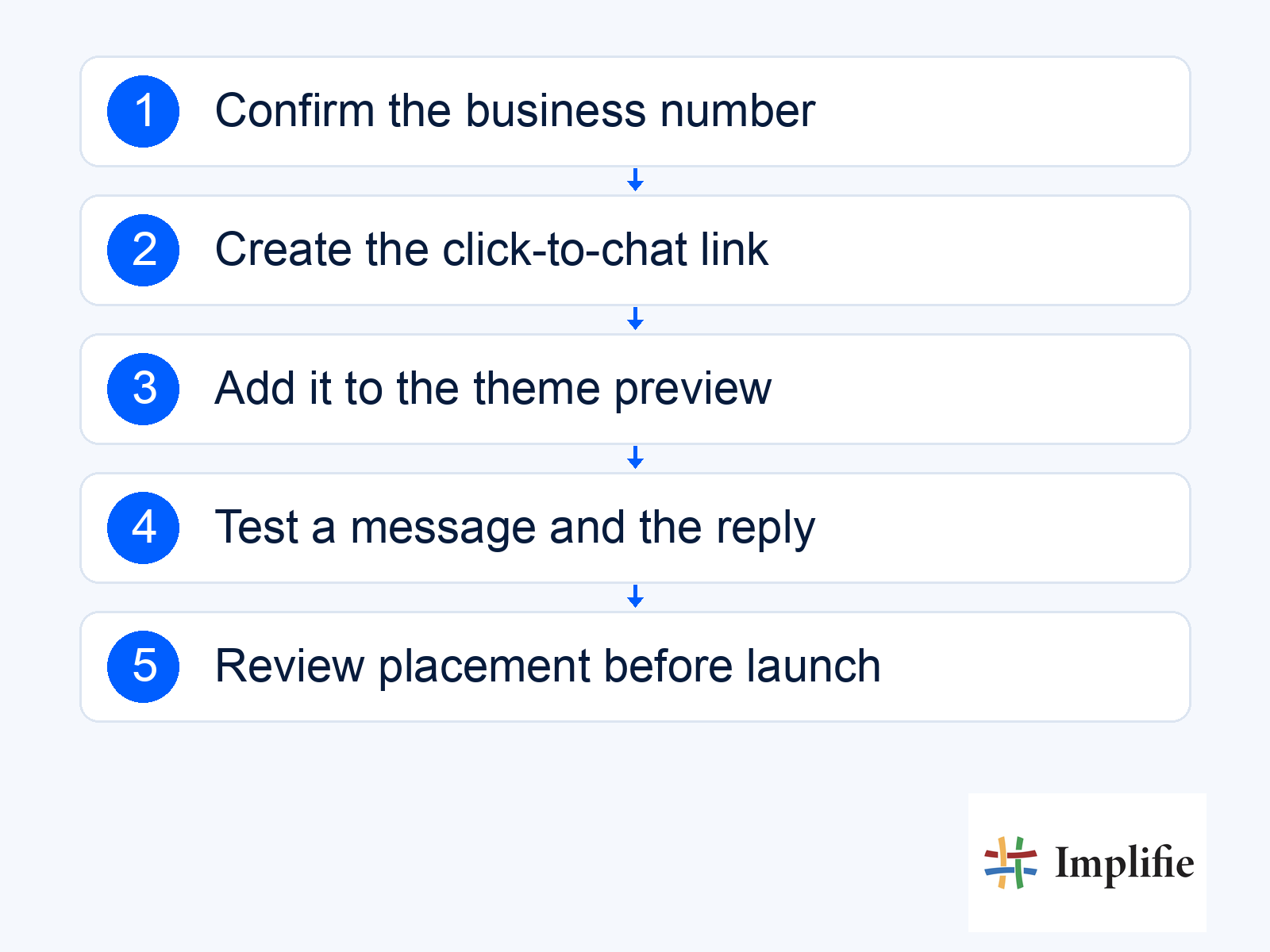
1. Confirm the business destination and reply owner
Use a business-controlled number with an active WhatsApp account appropriate to the intended setup. Confirm who receives incoming messages, when the team is available and how the customer gets help if a question needs another colleague. For ecommerce support, keep product and order information available to the receiving team. A button that opens the right number still creates a poor experience if nobody knows they are responsible for answering it.
If the business uses Implifie, review the shared inbox and customer context behind that number. A plain link does not automatically create a store integration, assign every enquiry correctly or transfer the shopper’s cart. Those functions need the actual supported setup. Keep the first implementation simple enough that the team can explain exactly what a customer’s click and message will do.
2. Build the Shopify WhatsApp link
WhatsApp’s click-to-chat guidance describes the wa.me format using the full international phone number without plus signs, brackets or separators. An optional URL-encoded text parameter can prefill the customer’s message. The customer still sends that message. Opening the link is not a submitted enquiry. Use neutral wording that invites the necessary context and avoid placing sensitive information in a URL or prefilled message.
Suggested prefilled wording: “Hello, I have a question about a product in your store.” The receiving team can then ask for the product and relevant size or specification.
The code below is a template, not a working link to an actual business. Replace YOUR_COUNTRYCODE_AND_NUMBER with the verified digits-only international number before installing it. Preview the resulting URL and test the destination. If you want a particular product reference in the message, use a supported theme or app method and check its encoding; a static link should not be described as automatically carrying every product or cart detail.
<a href="https://wa.me/YOUR_COUNTRYCODE_AND_NUMBER?text=Hello%2C%20I%20have%20a%20product%20question." aria-label="Ask our team a product question on WhatsApp">Chat on WhatsApp</a>3. Choose the supported Shopify installation route
Use the theme’s existing link or button setting when it supports the placement you need. If you have an appropriate chat app installed, follow its documented block or app-embed setup. Shopify explains app blocks and app embeds as distinct ways to add supported app functionality through the theme editor. Installing a particular app is not necessary for every simple link, and not every theme section supports the same blocks.
| Route | Suitable when | Check |
|---|---|---|
| Theme link or button setting | The theme already provides the desired link location | Destination, label and page coverage |
| Supported app block | An installed app provides a compatible section block | Theme compatibility and the actual app documentation |
| App embed | The installed app supplies an overlay or widget | Activation, placement and duplicate widgets |
| Reviewed custom HTML or Liquid | The theme supports the intended custom placement | Developer review, backup and mobile behaviour |
In Shopify admin, open Online Store, find the intended theme and choose Edit theme. For an app block, navigate to the relevant page and section, use Add block and select the supported installed app block where available. App embeds use their own activation settings. Preview before saving or publishing changes. If you later change the published theme, check the app activation again; do not assume a widget remains enabled on the replacement theme.
4. Review custom code before editing theme files
Use a backup or a suitable preview copy before making custom changes. Shopify’s code-editing guidance recommends the necessary HTML, CSS and Liquid knowledge for direct theme edits. If the theme offers a suitable Custom Liquid section, a reviewed simple anchor may be sufficient for that placement. A floating widget can require additional styling and testing. Avoid pasting unrelated scripts into a theme file merely to display one link.
Use clear visible wording, a descriptive accessible name and a usable tap target. Place the button where it supports the buying question without obscuring Add to cart, checkout, consent choices or navigation. Check keyboard focus and colour contrast. A custom code example should be adapted to the theme’s existing design rather than adding a second design system. Keep only one intended chat entry pattern so duplicate apps do not create overlapping bubbles.
5. Test a real message and the receiving workflow
Open the link on a phone and desktop, confirm the destination and inspect the prefilled wording. Send an appropriate internal test message through the real route and check who receives it. Review a product page, the homepage and another relevant page to confirm the placement behaves as intended. A successful click is not enough: the customer should be able to ask the question and the receiving colleague should be able to continue with useful context.
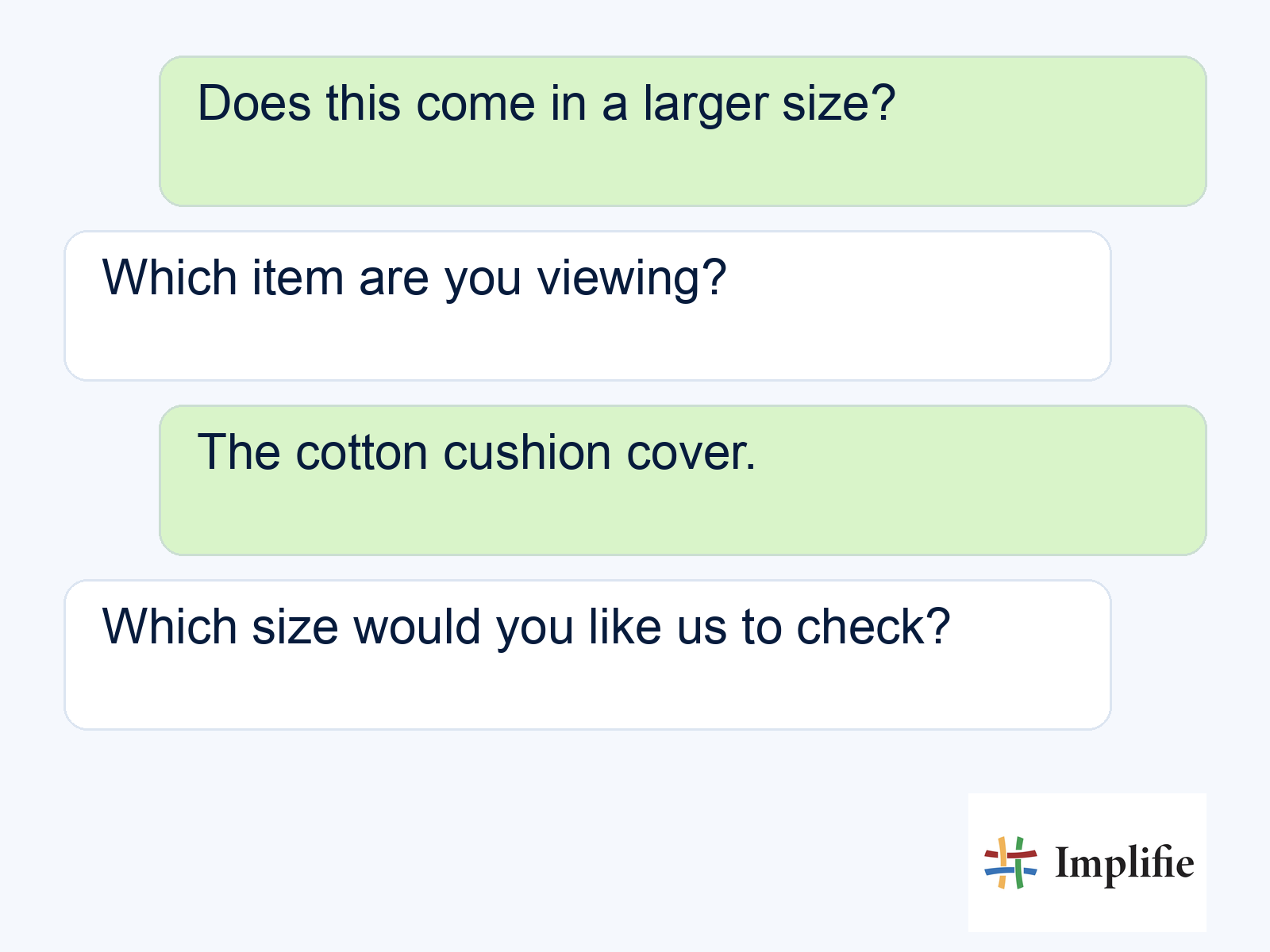
The conversation below is an illustrative product question, not evidence of an actual store test or purchase. The important behaviour is to identify the item and required size before checking the current variant. Commerce workflows may help when configured, but the button alone does not read stock or reserve an item. If an answer is unavailable, route the request honestly instead of displaying an invented confirmation.
6. Set expectations and review useful outcomes
Describe actual support availability and provide a reasonable next step outside staffed hours. An automated greeting is not the same as a person being available around the clock. Review repeated questions and improve the product page when it lacks information buyers need. Use support workflows for handling exceptions and keep necessary order checks separate from an initial general product question.
Measure button clicks separately from messages received, useful replies and completed purchases. The Business API setup guide explains the larger communication system if team access and connected records become necessary. For the button itself, the first useful result is a working route to an answer. Do not promise a conversion lift simply because a new icon appears in the corner of the store.
Make the button the start of useful support
A dependable WhatsApp chat button for Shopify uses the correct number, a supported theme route and a tested reply process. Check the destination, prefilled wording, mobile placement and receiving team before launch. Keep clicking, sending a message and completing a purchase distinct. The button earns its place when it helps a shopper get a useful answer without disrupting the store experience.
Frequently asked questions
Do I need API access to create a simple wa.me link?
No. A simple click-to-chat link is distinct from a connected Business Platform implementation. Choose the broader setup only when its capabilities are needed.
Will the chat remain inside my Shopify page?
A normal WhatsApp click-to-chat link opens the appropriate WhatsApp experience. Do not describe it as an embedded store conversation.
Does a prefilled message send automatically?
No. The customer still sends it. Count an opened link separately from a received enquiry.
Will the button automatically pass the cart and product data?
Not by itself. Dynamic context, cart access and stock information require an actual supported theme, app or integration implementation.
