


The message was sensible when it was scheduled. Two days later, the customer has bought the item, changed the appointment or asked to stop the offer. To schedule WhatsApp messages well, plan for those changes as carefully as the send time. A calendar entry should not become a commitment to send outdated information. Define what makes the message relevant when it is due, and decide how the workflow will stop or change if the customer’s situation changes.
This guide covers business scheduling through a supported messaging workflow. It does not assume every phone app has the same native scheduler or recommend a personal-phone workaround for business operations. Implifie’s published broadcast features include scheduling, and follow-up workflows connect messages to customer activity. Confirm the actual options in your account before planning a campaign or a sequence that depends on them.
Choose between scheduled broadcasts and event-based follow-ups
A scheduled broadcast sends a defined campaign at a planned time. An event-based follow-up starts from something that happened, such as an enquiry or a supported record change, and may wait before continuing. A reminder may depend on the time of a confirmed appointment instead. These patterns need different stop rules. Choose the one that matches the customer task rather than treating every reminder as a repeated campaign to the same list.
| Pattern | Example purpose | Check when due |
|---|---|---|
| Fixed campaign time | A relevant update for an eligible audience | Offer validity, audience and contact choices |
| Wait after a customer event | Continue an agreed enquiry step | Whether the customer replied, bought or declined |
| Before a confirmed appointment | Share useful visit instructions | Current booking time and cancellation state |
| After a completed service | Ask a focused feedback question | Whether the service actually completed |
| Manual follow-up task | A person checks an unresolved request | Current case state and responsible colleague |
Set an explicit date, time and time zone
Record the intended customer-facing time and the scheduling tool’s time zone together. For example, 09:00 India Standard Time corresponds to 03:30 UTC; entering one while assuming the other changes the customer experience. If an audience spans regions, decide whether to segment it by local time or use another supported arrangement. Check daylight-saving changes where applicable instead of assuming every location keeps the same offset throughout the year.
Plan the time around both the customer and the receiving team. A promotion that invites questions should not create a large queue when nobody can provide the promised help. There is no universal best hour in this guide. Test a reasonable time for the audience and review the result. Include the actual date as well as the weekday in internal planning so an edited campaign does not accidentally inherit an old schedule.
Prepare the message that will be valid at send time
Use current offer or appointment information, a working destination and a template appropriate to the intended communication. Meta’s template guide explains the role of templates outside the customer service window. Scheduling a message does not reserve that window or remove template requirements. Review the intended category, language and parameters through template management before the message is due.
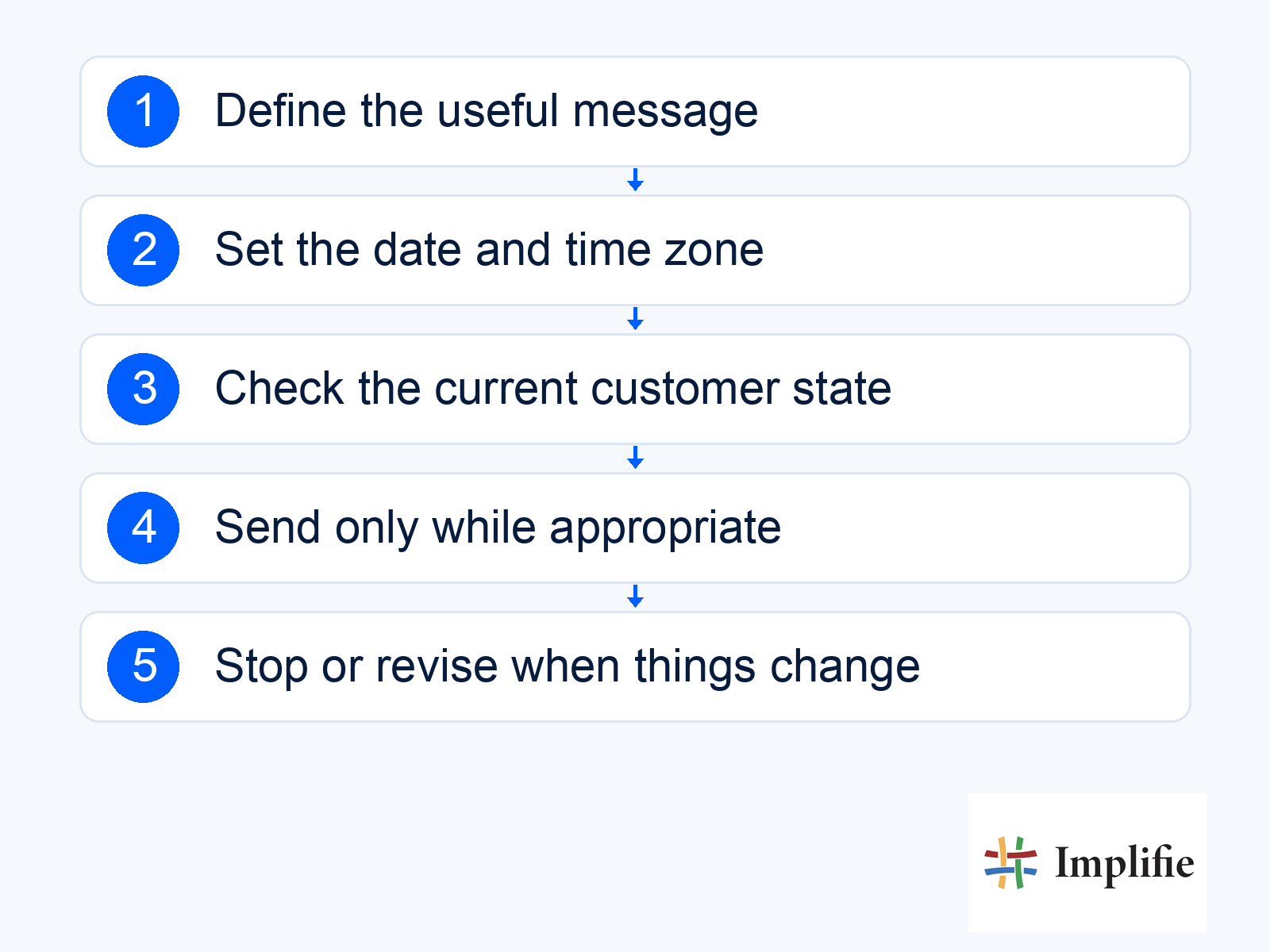
- Purpose: Explain why this message should arrive at that point in the journey.
- Timing: Record the date, time, zone and relevant source event.
- Current facts: Check the offer, booking, price or record needed for accurate wording.
- Eligibility: Confirm the recipient is still appropriate for the communication.
- Stop condition: Define which reply or record change cancels or revises the next message.
Schedule WhatsApp messages with clear stop rules
A sale, cancellation, refusal or new support question can make the original message unnecessary. Decide which system provides that change and what the workflow should do when it arrives. A customer record can retain the context, but the connected workflow must actually use it. Do not assume that saving a note automatically cancels every related campaign. Test the particular stop route your implementation depends on.
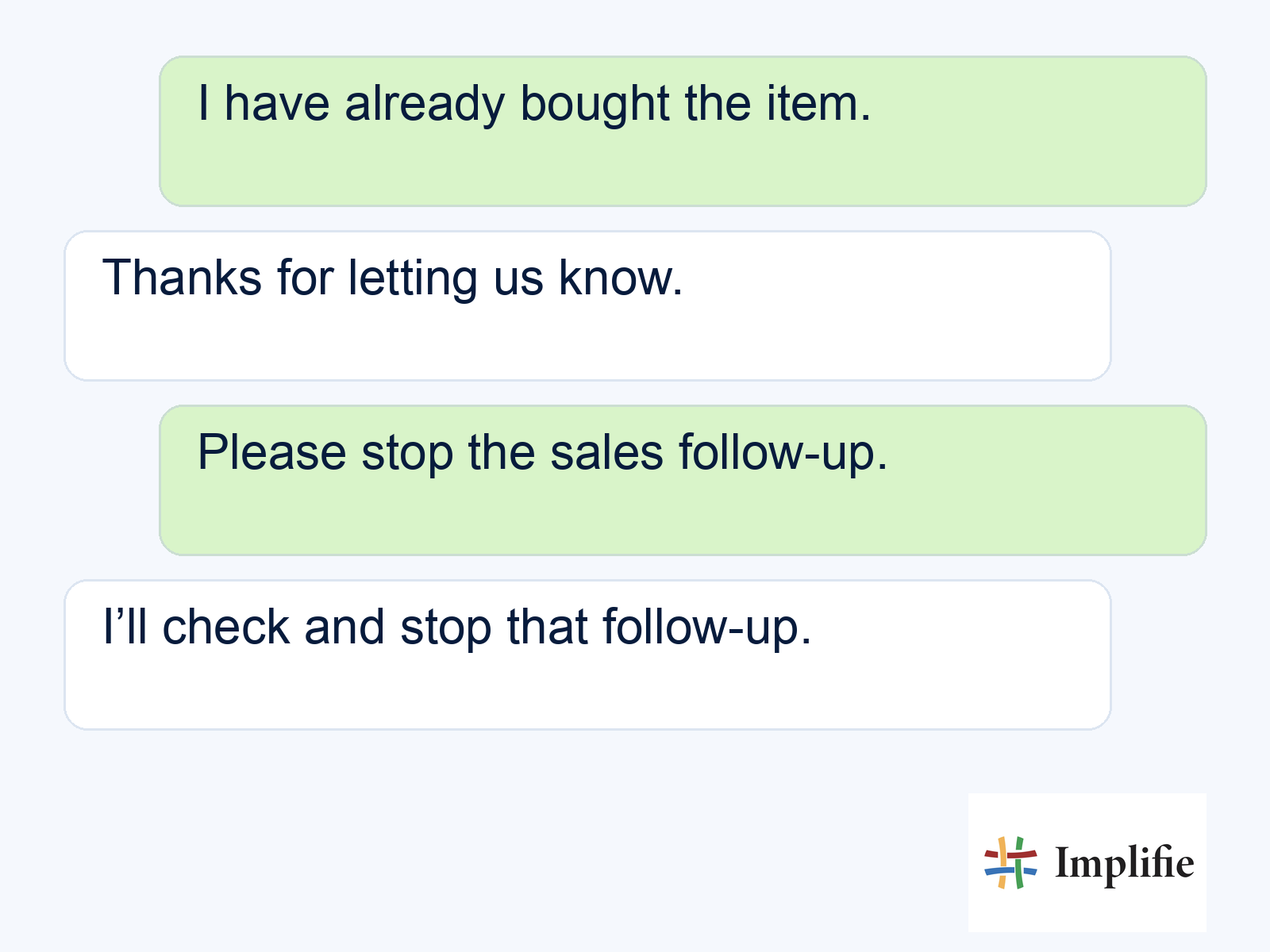
The example below is an illustrative customer saying the purchase is complete. The team’s next action is to check the record and stop the relevant sales follow-up where appropriate, rather than continuing as though no answer arrived. For retail follow-ups, that distinction prevents an offer from sounding disconnected from the conversation. Keep other necessary service updates separate so ending a promotion does not silently abandon an open support task.
Test a changed record before relying on automation
Test the original schedule, then change the condition before the message is due. Try a customer who replies, an appointment that moves, a cancelled order and an expired offer. Check whether the message stops, updates or waits for review as designed. Also examine what happens when a required connection is unavailable. Holding an uncertain message can be more useful than confidently sending information the business cannot verify.
Review the final text on a phone, including long variables and the destination link. Confirm the receiving colleague can identify why the message was scheduled and which next action the customer was invited to take. A shared inbox can keep that reply with context. For a service reminder, make sure a request to move the appointment reaches the actual booking owner and is not mistaken for a completed reschedule.
Review send outcomes and the customer result
Use message reporting to distinguish scheduled, sent, delivered and failed activity where those states are available in your workflow. Confirm the customer outcome in the relevant order, booking or enquiry record. A scheduled timestamp is a plan, not evidence that delivery occurred at that exact moment. Review delays and failed attempts before retrying so an obsolete reminder does not arrive after the appointment or promotion has ended.
To schedule WhatsApp messages responsibly, combine a useful purpose with an explicit time zone, current information and a tested stop condition. Check the customer’s state again when the message is due and give replies a clear owner. Expand the journey only after changed records and exceptions behave as intended. Good scheduling helps the conversation stay relevant, rather than making an old message arrive automatically.
Frequently asked questions
Does scheduling guarantee delivery at the exact time?
No. Scheduling defines the intended send time. Review actual sending and delivery evidence, connection state and any applicable account constraints.
Does a scheduled message keep a customer service window open?
No. Check the applicable message requirements at send time and use the appropriate approved template when required.
What if the customer buys before the follow-up?
Check the purchase record and stop or revise the relevant sales message. Test that the actual connected workflow responds to the change.
Can every personal WhatsApp app schedule the same way?
Do not assume that. This guide concerns supported business tools; verify the actual scheduling capability and account setup you intend to use.
