


First identify the exact message on screen. A WhatsApp account review is relevant when the account is banned or restricted and the official tools offer that route. A registration problem, a failed message and a policy restriction are different issues. Reinstalling the app or verifying the phone number should not be presented as a general way to reverse a ban. Keep the account details and notice available, pause affected activity and choose the process for the product you actually use.
This guide was reviewed on 17 November 2026. It covers the WhatsApp Business app and the Business Platform separately, without promising recovery or a completion time. If a retail business relies on WhatsApp, also assign someone to handle customer enquiries through an existing appropriate support route while the issue is investigated. Keeping customers informed is a separate task from challenging the account decision.
Check whether WhatsApp account review is the right step
Copy the exact notice into an internal incident record and note when it appeared. Check whether the issue affects the Business app, the Platform account, a particular number or a single message. Do not infer an account-wide ban from one unsuccessful notification. If account tools show a policy decision, keep that decision and the stated next steps together. If the evidence instead points to a technical sending error, investigate that error rather than submitting an unrelated appeal.
| What you observe | Where to investigate | Avoid assuming |
|---|---|---|
| Business app ban notice | The app’s available review process | Reinstalling reverses the decision |
| Platform restriction or violation | Meta Business Support Home and account notices | The Business app appeal is the same route |
| Single failed message | Message status and error details | The whole account is banned |
| Registration or code issue | The official registration guidance | A new code overrides a policy restriction |
Request review in the WhatsApp Business app when offered
WhatsApp’s Business app ban guidance says to use Request review in the app if you believe the ban was a mistake. It also states that if no review option appears, the ban is final and cannot be appealed through that process. Check the decision in the app. Contacting WhatsApp through other users or outside the review process does not expedite the decision, and a third-party service cannot remove the ban.
Prepare a concise factual explanation of the business activity and why you believe the decision needs review. Include only relevant information requested by the official process. Separate facts you can establish from guesses about a competitor, a customer report or an automated system. Keep the wording respectful, but do not treat a particular appeal script as a guaranteed fix. The goal is to provide useful context for the actual review, not to repeat the same request through many channels.
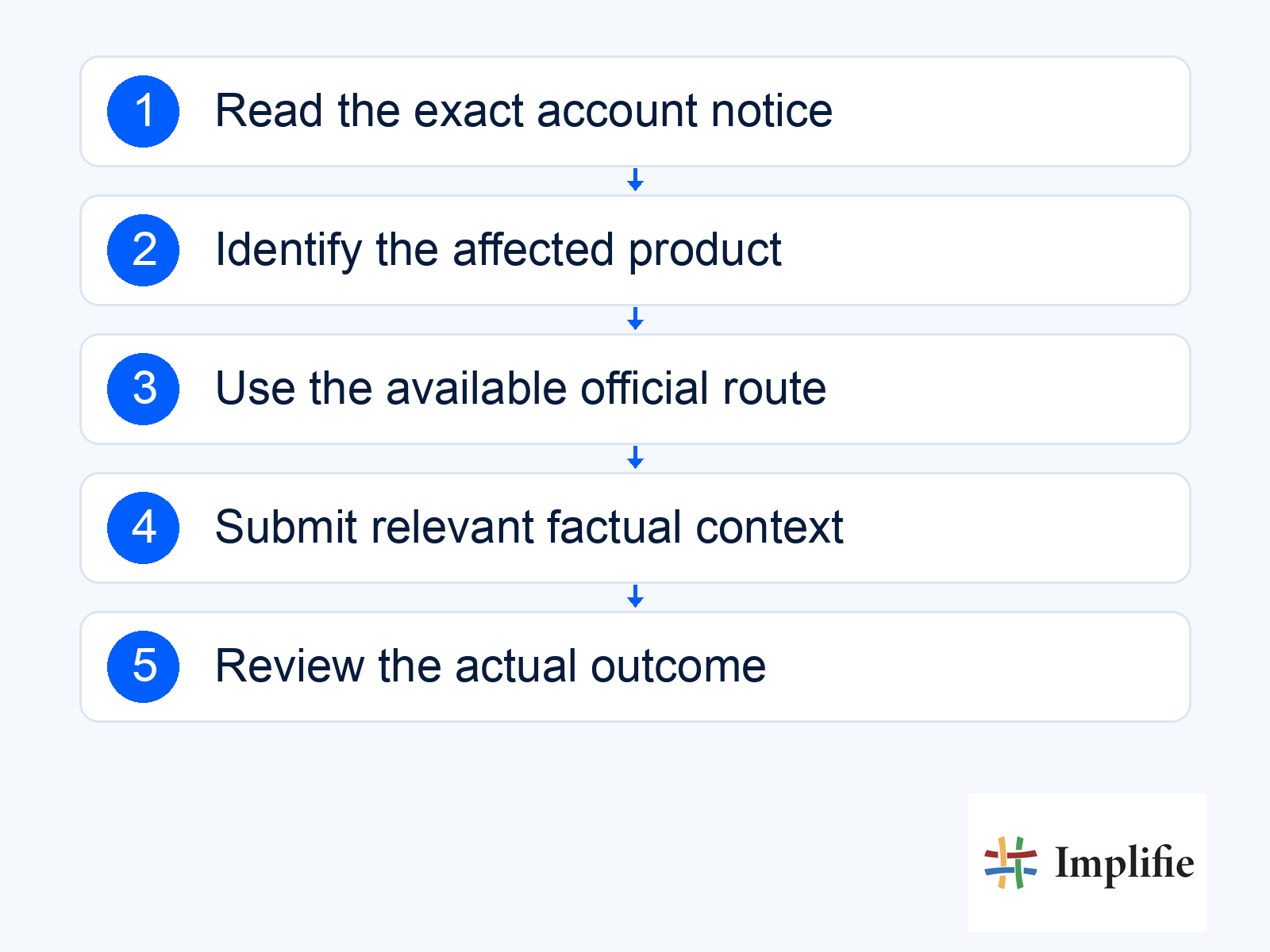
Review Business Platform restrictions in Meta’s tools
Meta’s Platform enforcement guide directs businesses to Business Support Home for violation details, active restrictions and available review steps. Appeal or acknowledgment options depend on the violation and eligibility. Read the specific notice for the account before choosing an action. A restriction on some messaging features and a disabled account can require different responses; do not treat them as one generic “unblock” procedure.
If you use a provider for WhatsApp Business Platform workflows, coordinate the evidence and technical investigation with the appropriate support owner. Keep the business account, affected number and relevant timestamps clear. Do not share access tokens, passwords or verification codes in a general support conversation. Assistance can help identify the issue and prepare the right information, but the provider should not promise that it controls Meta’s review outcome.
Prepare evidence and correct the underlying issue
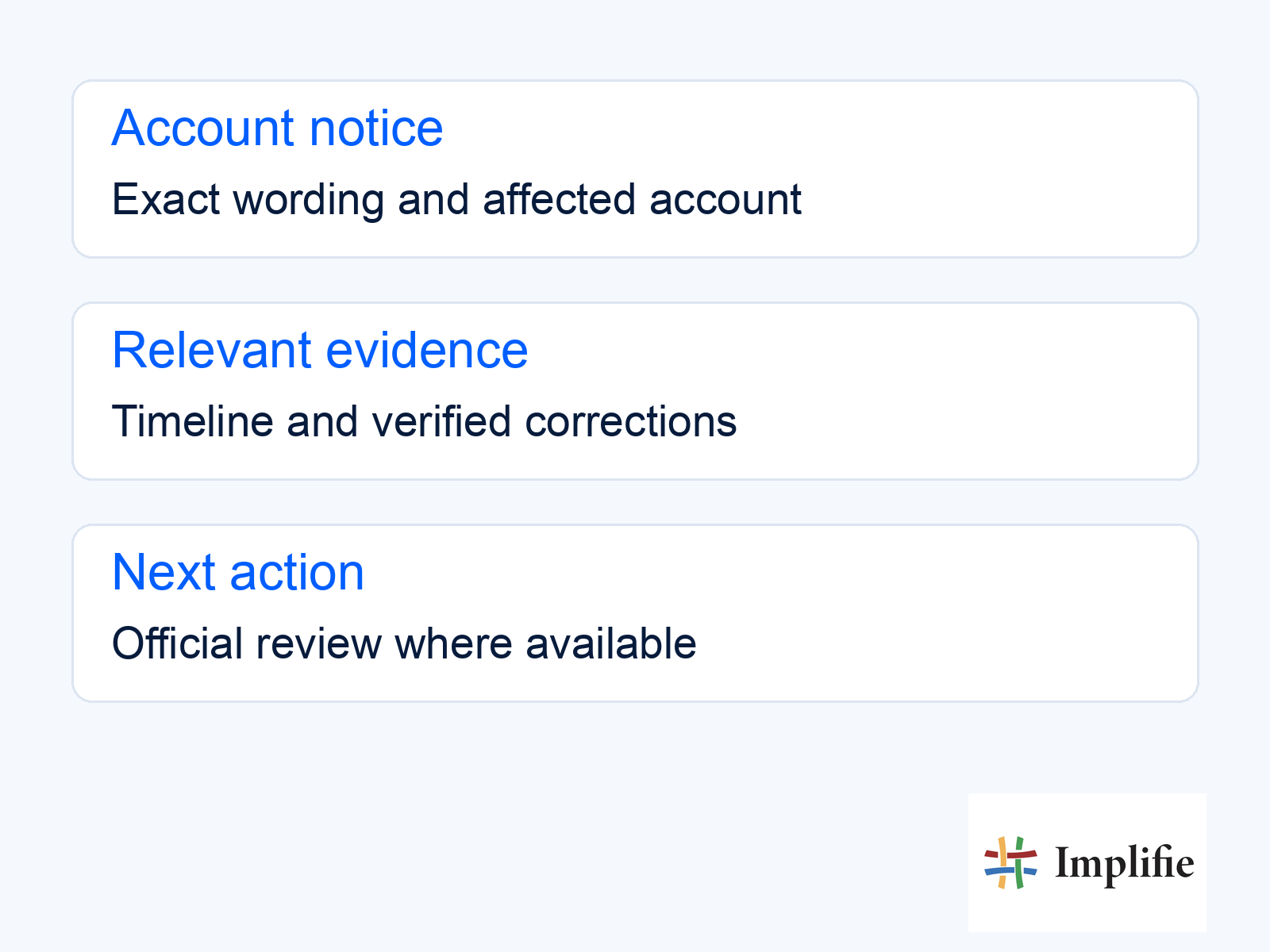
Use an internal checklist before resuming activity. Review the message purpose, audience origin, customer preferences, templates and recent configuration changes. If you discover an error, record what changed and how recurrence will be prevented. Do not claim a fix has been completed until the responsible person verifies it. The following concept graphic is a preparation aid, not an official appeal form or proof that an application has been submitted.
- Notice: Preserve the exact wording and affected account.
- Timeline: Record when the issue began and any relevant preceding change.
- Relevant evidence: Collect only information needed to explain the business activity.
- Corrective action: Identify a verified change where a problem is found.
- Review status: Record the official outcome and the next permitted step.
For an established customer workflow, inspect template handling and the way preferences reach the customer record. A list import that restores opted-out contacts can recreate a problem after access returns. A campaign sent without a clear owner can leave complaints unanswered. Keep the corrective work tied to the observed issue rather than assuming that sending fewer messages alone resolves every restriction.
Resume only after checking the actual account state
After a decision, confirm what the account tools now permit. Update the internal incident record and test an appropriate limited path before re-enabling a paused workflow. Check pending schedules so old or expired messages do not suddenly reach customers. If access remains restricted, communicate that status honestly and use existing appropriate support arrangements. Do not move the same prohibited activity to another number as a way to evade enforcement.
Make one person responsible for incident coordination and another clear owner for unanswered customer requests where the team needs that separation. A shared inbox can help organise conversations when the account is operational, but it does not undo a restriction. Keep a current support contact and review the workflow after the incident. The useful result is a better understood and maintained process, whether the review succeeds or not.
Use the official route and report the real outcome
Handle a WhatsApp account review by identifying the product, preserving the notice and following the available official process. Prepare relevant facts, correct verified problems and keep customer support organised while waiting. Report the actual decision without promising recovery or a faster result through unofficial channels. If access returns, confirm the permitted state and review queued activity before resuming messages.
Frequently asked questions
Can someone guarantee that my account will be unbanned?
No. WhatsApp’s guidance says third parties cannot remove Business app bans. Use the official review route where it is available.
Does verifying my number reverse a policy ban?
Do not treat registration verification as an appeal. Identify the notice and follow the appropriate official process for that issue.
What if there is no Request review option in the Business app?
The current Business app guidance says the ban is final when that review option is absent. Do not promise an unofficial alternative that reverses it.
Should I restart scheduled campaigns immediately after access returns?
Check the current account state, the underlying issue and queued messages first. Hold outdated or inappropriate communication for review.
