


Searching for a green tick can send you towards several different processes. WhatsApp business verification may refer to verifying business details in Meta, subscribing to Meta Verified where available, or requesting Official Business Account status for an eligible Platform number. These routes are not interchangeable. Start by identifying your current WhatsApp product and the result you need, rather than following an old menu path that treats every verification process as one application.
This guide was reviewed on 17 November 2026. Current official documentation describes blue verified checkmarks, so a guide built only around the older “green tick” wording can mislead. A badge also does not replace a useful profile, accurate business information or responsive service. For a retail business using WhatsApp, those daily basics remain important whether or not a particular verification option is available.
Choose the WhatsApp business verification route
Choose the route according to the account and the intended outcome. Business verification concerns the business details Meta asks you to establish. Meta Verified is a subscription offering subject to eligibility and availability. An Official Business Account, or OBA, is a status for an eligible business phone number on the WhatsApp Business Platform. A completed business check should not be described as automatic approval for every visible badge or subscription benefit.
| Route | What to investigate | Do not assume |
|---|---|---|
| Business verification | The business details requested in Meta’s account tools | A visible badge is automatically granted |
| Meta Verified | Subscription availability and requirements for your account | Every business sees the same offer or price |
| Official Business Account | Current Platform-number eligibility and request route | Buying software guarantees approval |
Check Meta Verified availability in the Business app
WhatsApp’s Meta Verified guidance says availability can be checked in Settings or Business Tools in the WhatsApp Business app under Meta Verified. If that option is absent, the offering is not currently available to that account. Where it is available, review the displayed requirements, terms and actual subscription price before choosing it. Use the account’s current information rather than a fixed price or package copied from an older article.
Prepare accurate business details before submitting anything. Check that the person responsible has the right account access and understands what is being requested. Do not create inconsistent names or documents to fit a shortcut. If your business already has a badge, review the official guidance for its situation instead of assuming it needs a new application. A subscription decision should follow the actual benefits and requirements shown to your account.
Review current Official Business Account eligibility
Meta’s OBA documentation currently lists Platform registration for at least 30 days, a verified owning business portfolio, two-step verification, an approved display name and policy compliance among the eligibility requirements. It describes requests through WhatsApp Manager or the API and a 30-day wait before another request after rejection. These are the current published checks, not a promise that meeting them guarantees approval or that older notability advice describes the present process.
Use the official route visible for the relevant Platform number and follow the current application instructions. If you meet the listed checks but cannot see the option, use the support route described by Meta or your provider to investigate eligibility. Keep the distinction between preparing an application and deciding it: Implifie can be discussed as part of business messaging setup, but it should not be presented as selling or guaranteeing OBA approval.
Prepare a consistent business identity
Use one clear checklist for the account owner. Confirm the legal and public-facing information requested by the chosen route, who can manage the account and how verification communications will be received. Keep documents in the authorised application process rather than pasting them into unrelated chats. Preparation reduces avoidable mismatches; it does not establish that a particular document will be accepted in every country or every verification route.
- Business details: Check the requested name, contact information and website against the actual business.
- Account access: Identify the authorised administrator and recovery route.
- Phone number: Confirm control of the number associated with the intended account.
- Profile information: Keep the display name, description and customer support details accurate.
- Application evidence: Supply only the information requested through the official process.
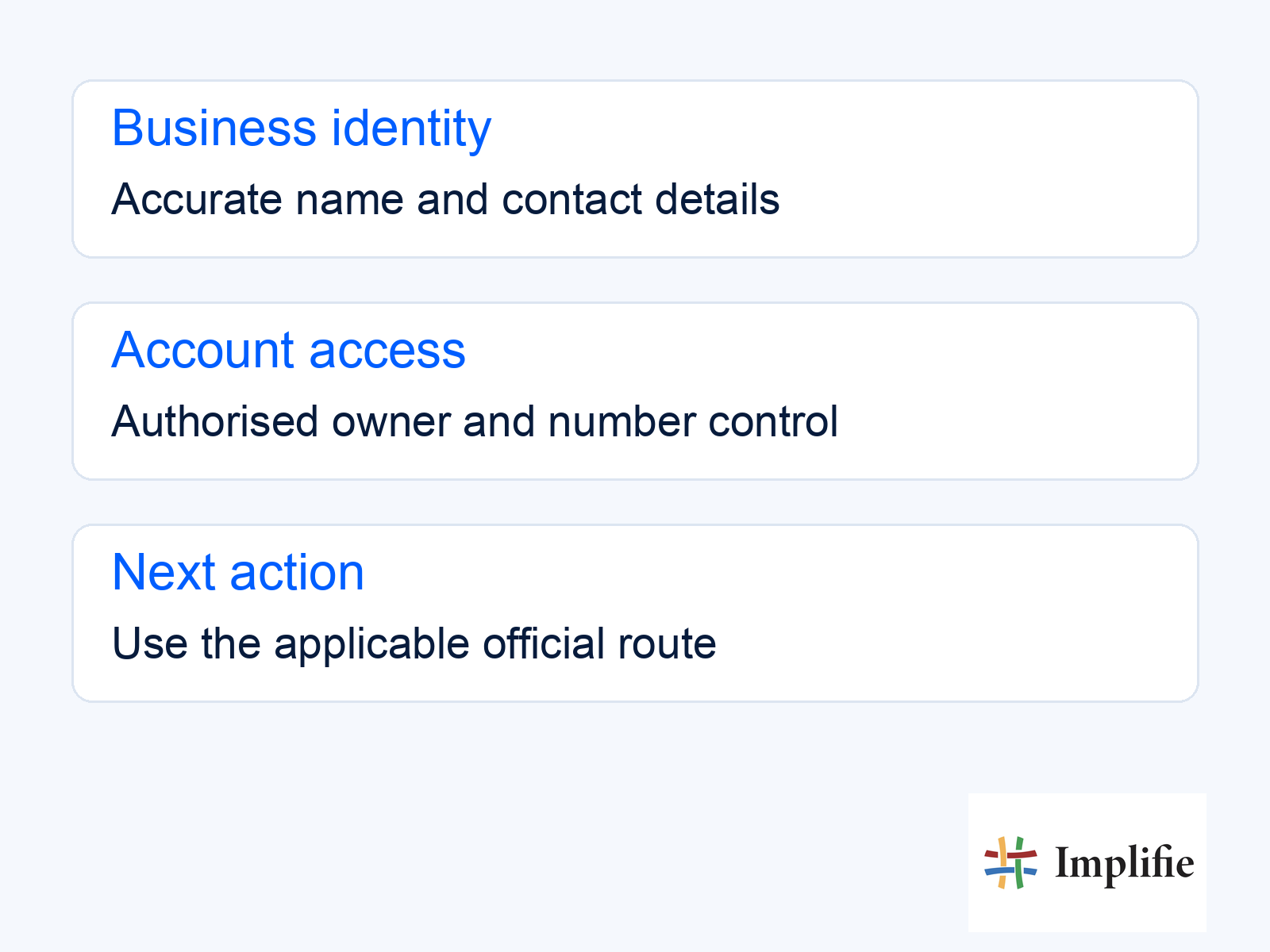
The concept graphic below separates identity details, account access and the next review action. It is not a screenshot of a verification interface. Use the checklist as an internal preparation aid, then follow the real application shown to your account. If another person assists, give appropriate account access rather than sharing a registration code or password. A visible badge should not come at the cost of losing control over the business number.
Handle a missing option or rejected request honestly
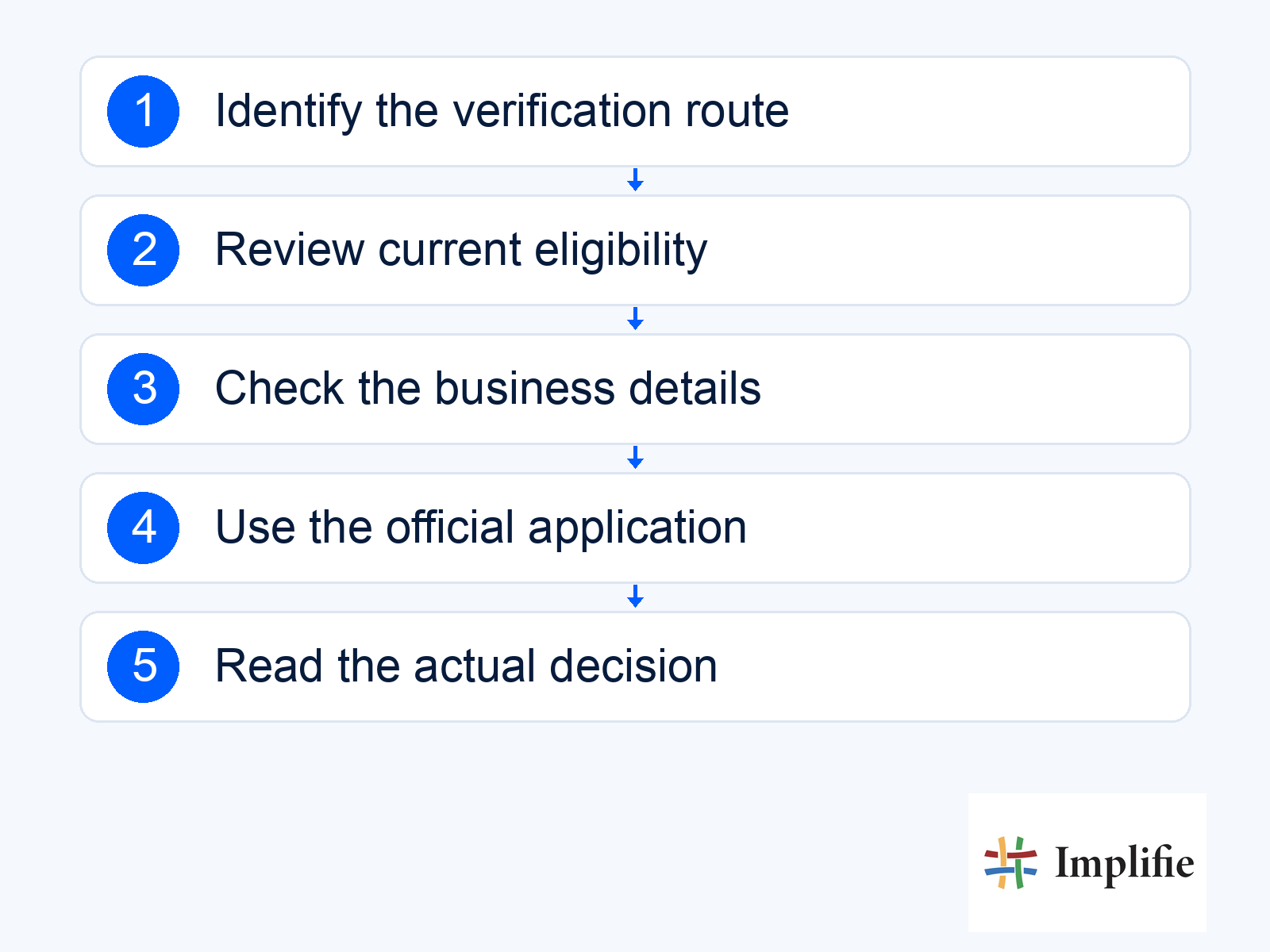
Read the actual decision and the current guidance for that route before resubmitting. Correct a factual mismatch where the instructions allow it, and respect any stated waiting period. Do not replace the business information with invented evidence or promise a customer that a paid third party can reverse the decision. When the option is unavailable, document that limitation rather than using screenshots from someone else’s account as proof that yours should be eligible.
Continue improving the customer journey while the verification question is being resolved. A complete profile and consistent communications help people recognise the business, while a shared inbox and a customer record can help the team answer enquiries with context. A badge is an identity signal; it does not answer an order question, assign a lead or confirm that an automation works. Keep those operating tasks in the implementation plan.
Choose the route before preparing the application
Approach WhatsApp business verification by identifying the account type and the specific result you need. Check current eligibility, prepare accurate information and use the official process available to your business. Keep subscription benefits, business checks and OBA status distinct. Report the actual decision and next step without turning a badge into a guarantee of better sales, wider delivery or automatic approval.
Frequently asked questions
Is the older green-tick wording still the clearest guide?
Current official documentation describes blue verified checkmarks and more than one route. Identify the actual product and application rather than relying on badge colour alone.
Does business verification automatically grant OBA status?
No. Treat the business check and the OBA request as distinct processes, and review the requirements for the specific Platform number.
Can a software subscription guarantee verification?
No approval guarantee is made here. Meta decides eligibility and application outcomes through its official processes.
What if Meta Verified is not visible in the app?
WhatsApp’s guidance says the offering is not currently available to the account when that option is absent. Do not invent an alternative menu path.
